How to use Clipping
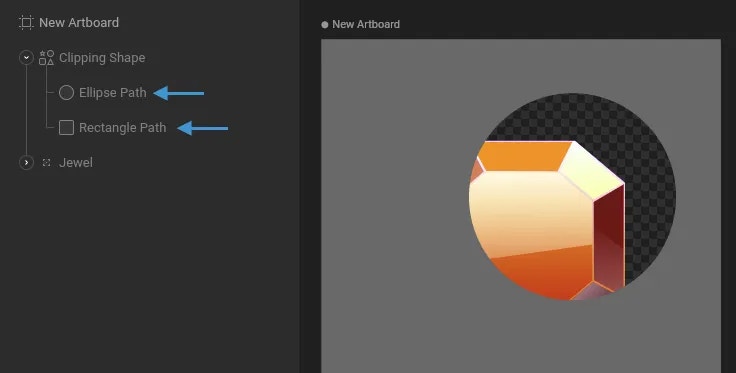
Select the shape or group you want to clip and hit the plus button next to the Clipping options in the Inspector. After hitting the plus button, you’ll notice a blue border appear around the stage, indicating that you can pick a shape as the clipping source. Now, select the path you want to use as a clipping path. Remember, the clipping target must be a shape, not a group or any other object.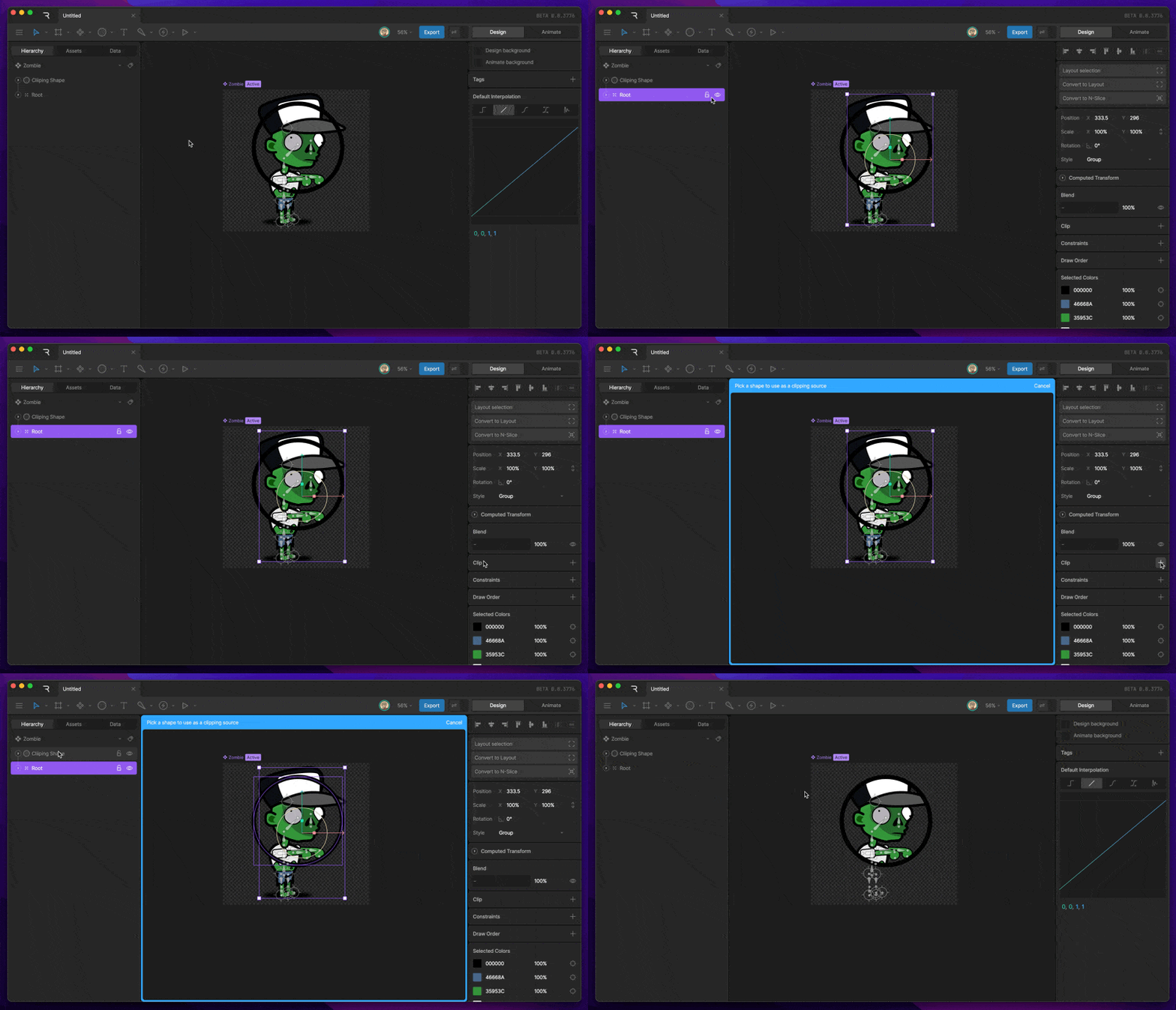
Clipping and path direction
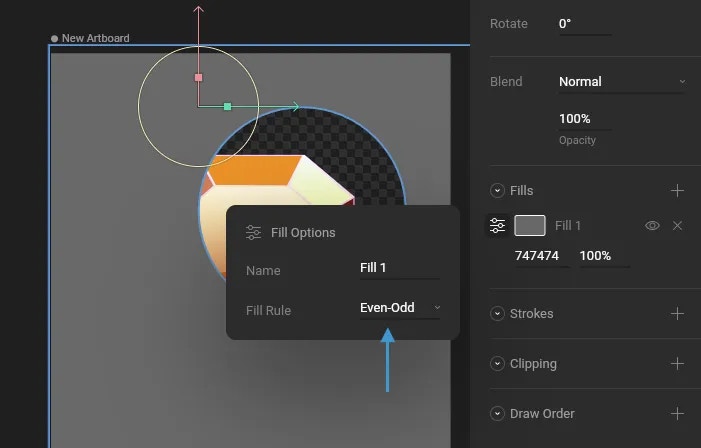
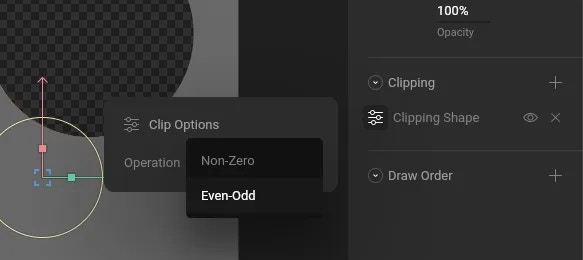
If you have shapes that aren’t clipping, or only partially clipping, be sure to check the winding of that shape. In most cases, reversing the direction of the path fixes this problem.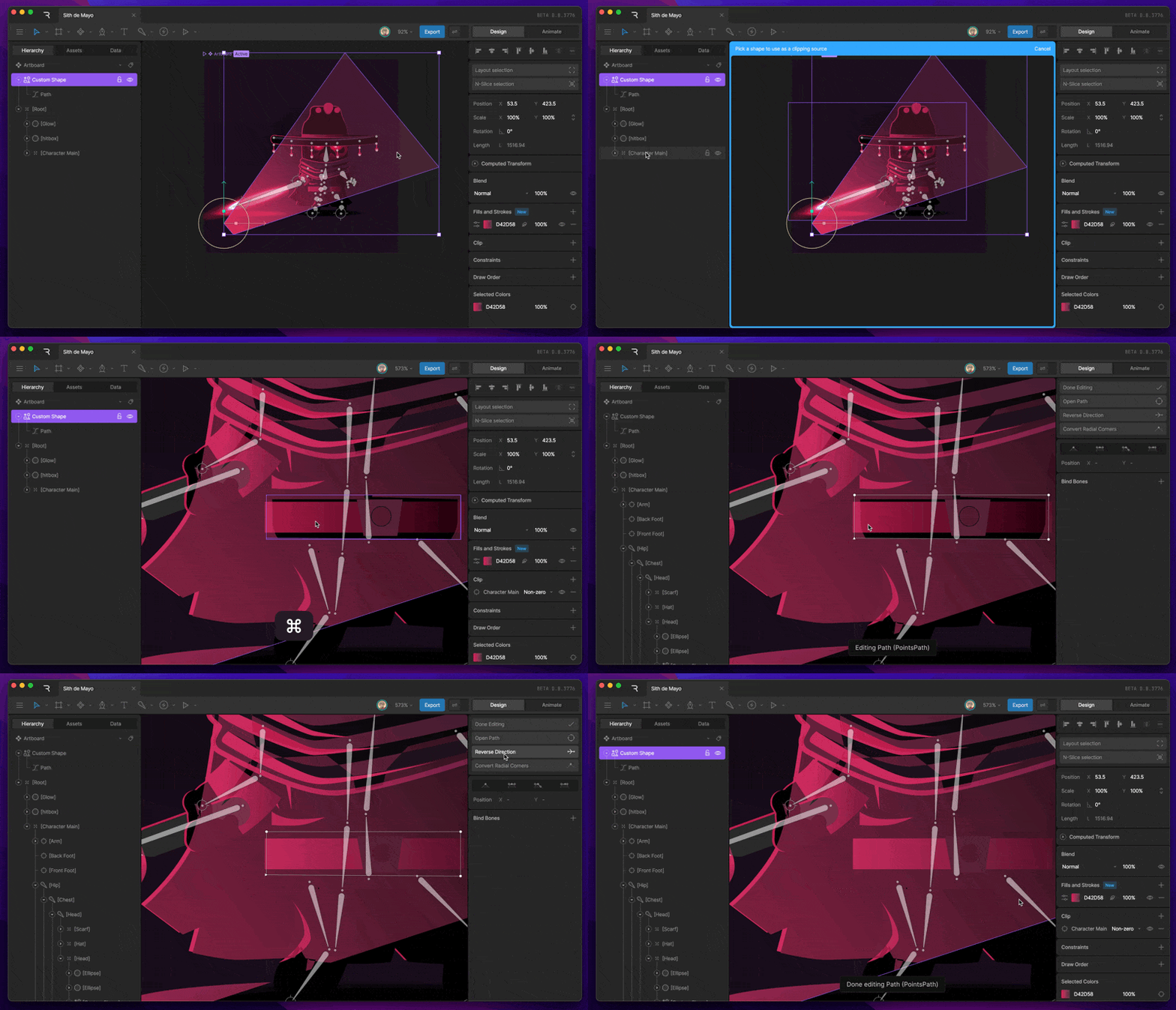
Inverse Clipping
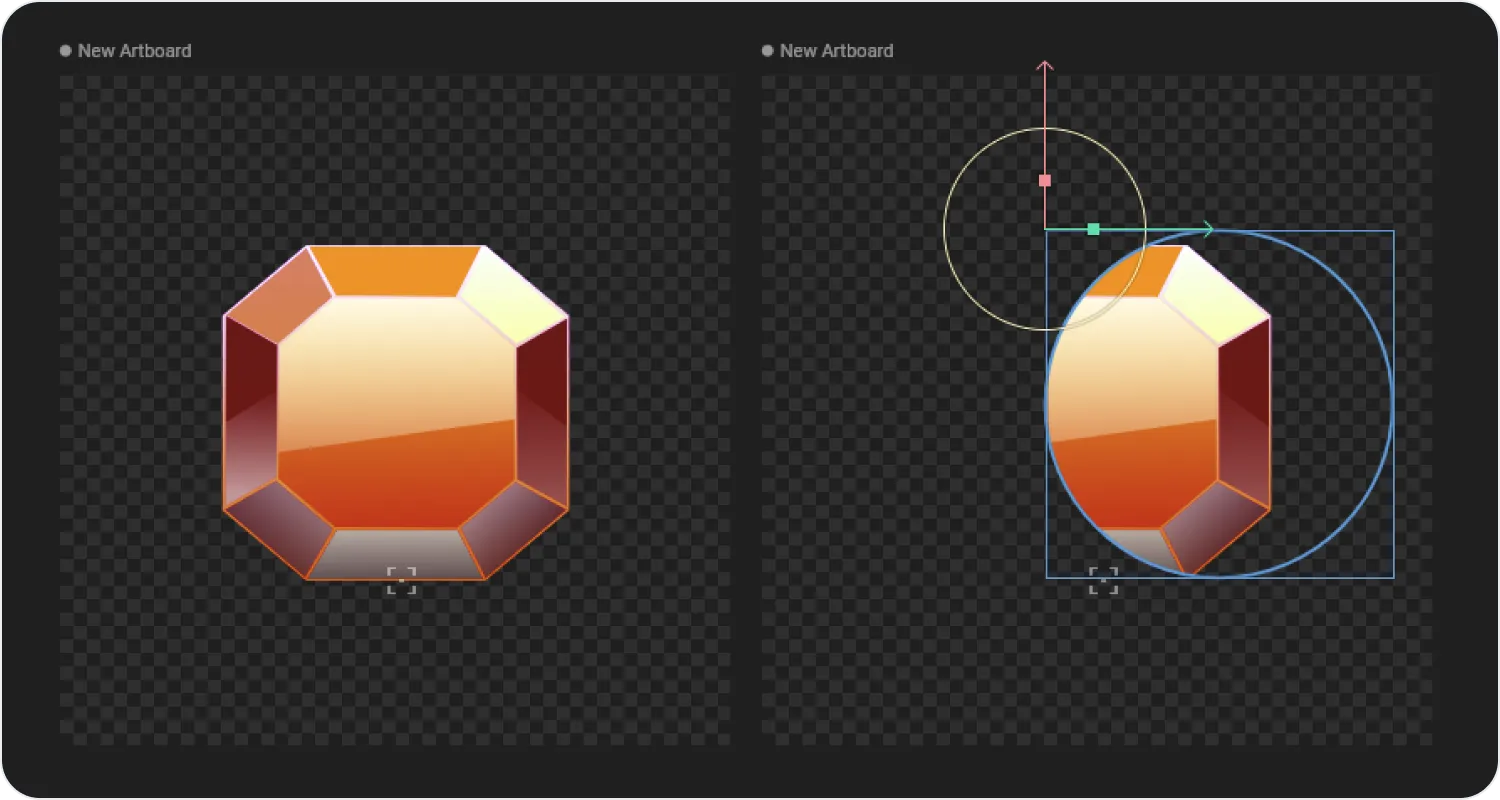
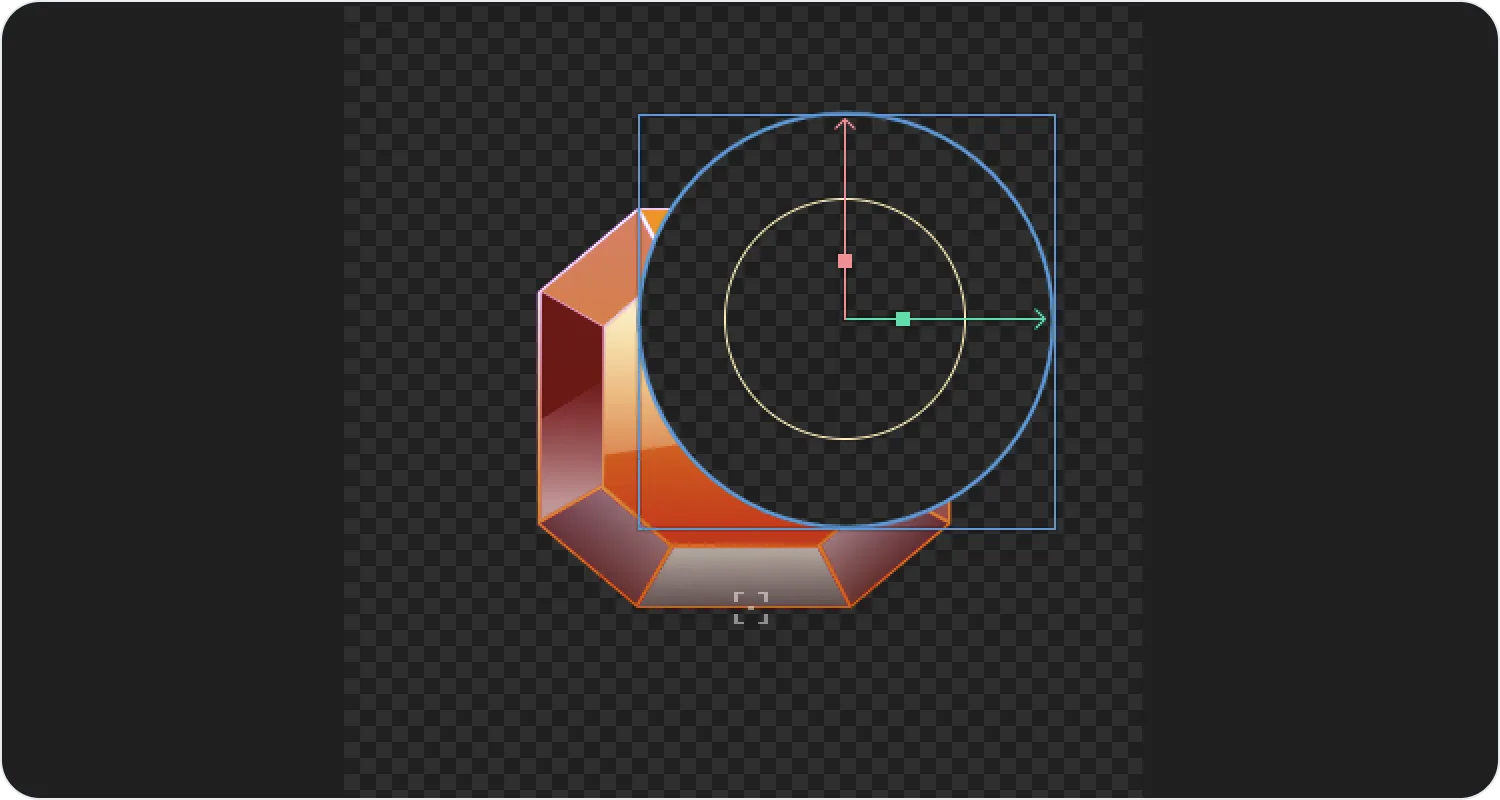
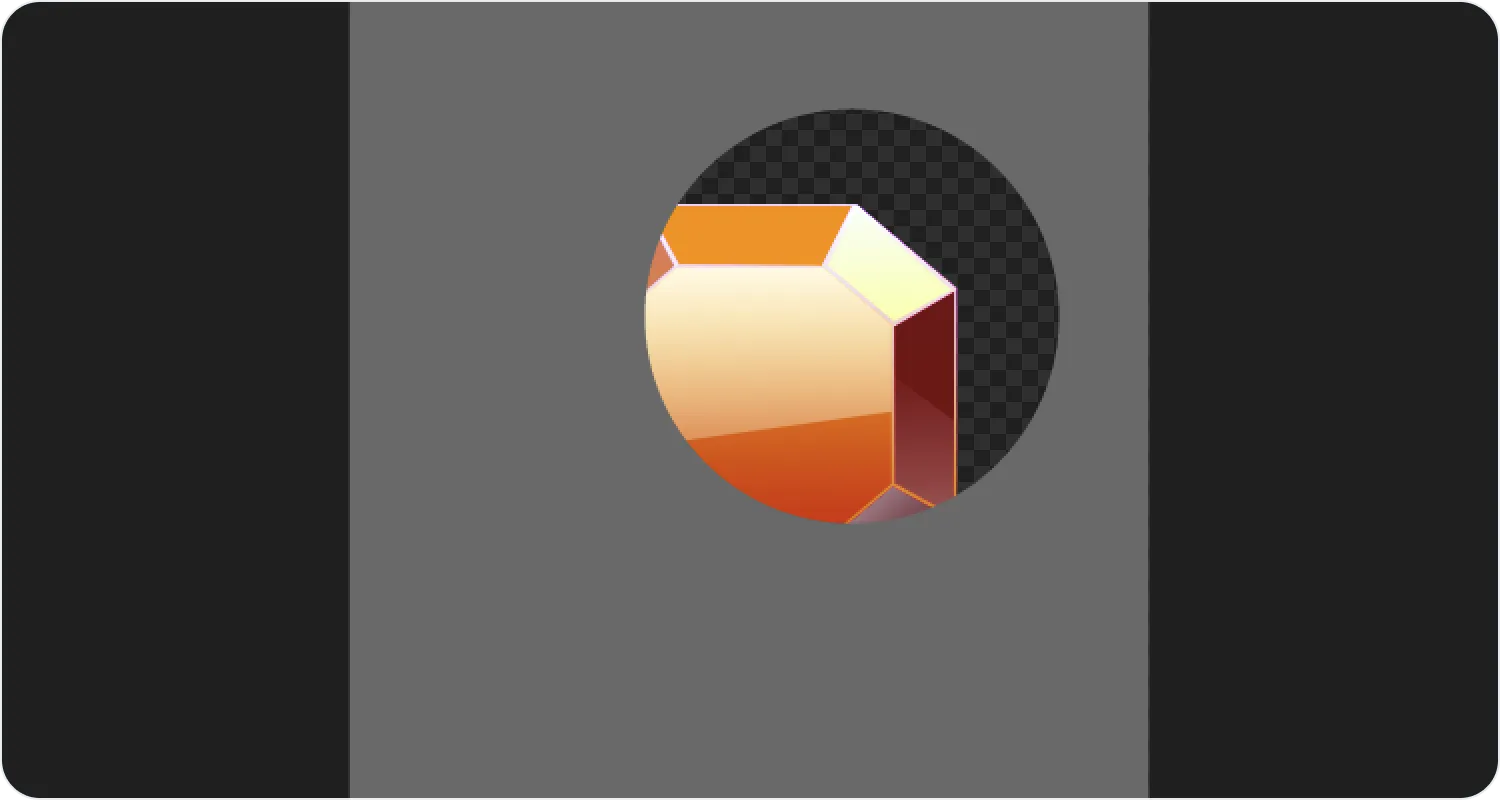
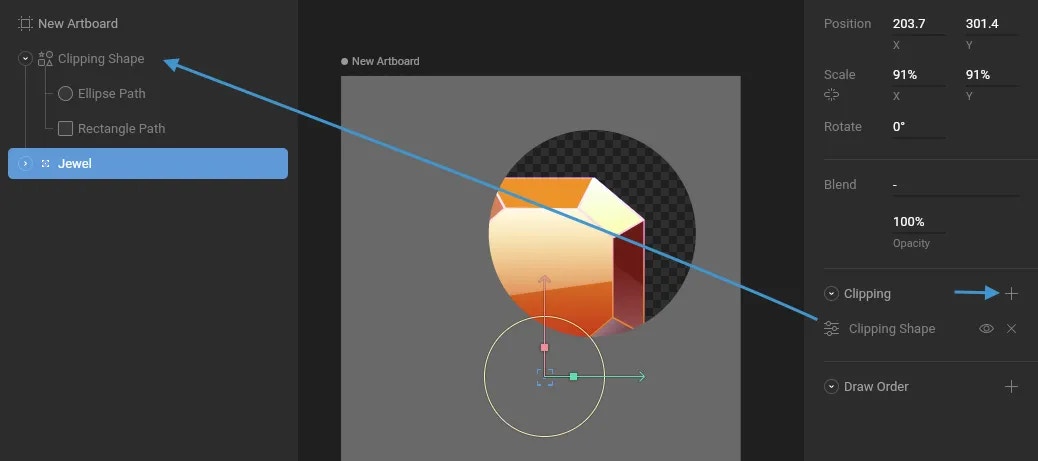
Clipping is typically used to hide a part of your graphics. In the example below, we’re using an ellipse to show only part of our jewel graphic.